FAQs
Frequenty Asked Questions
How do I cancel my subscription?
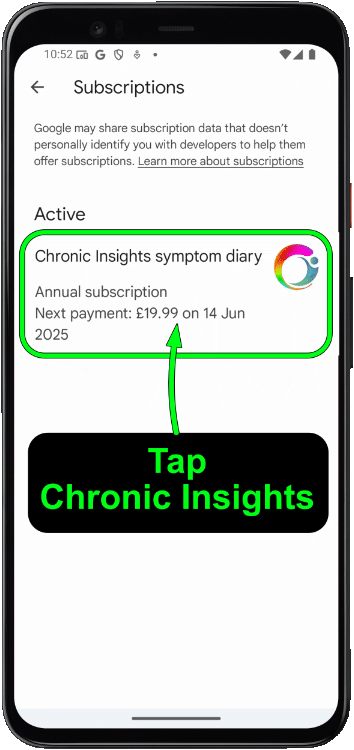
To cancel a subscription, open the main settings menu and choose “Premium”. Then tap on “Cancel subscription”. This will open the Play Store (if you’re on Android) or the App Store (if you’re on iPhone/iPad) at the subscriptions page. Tap on Chronic Insights in the list of active subscriptions, and choose “Cancel”.


Play Store (Android)
App Store (iPhone / iPad)


How do I sync between multiple devices?
Unfortunately, using Chronic Insights on multiple devices at the same time (for example on your phone and on a tablet) is not supported. This is due to a deliberate design decision I made with Chronic Insights, to make the app 100% private.
Why isn’t sync supported?
Hi, it’s James, the creator of Chronic Insights 👋 I just wanted to explain why you can’t sync between multiple devices, because I designed Chronic Insights to work a little differently to most apps to support my mission to create a 100% private symptom diary.

To support syncing between multiple devices, I would have to make you log into my app using an email address and password, and I would have to collect your health data (and everybody else’s) onto a central database. One of the reasons I decided to make Chronic Insights was that I didn't want my health data in the hands of some corporation who might sell my personal details to data brokers. Instead, I wanted to create a truely private diary app, which didn’t collect any health data. The downside of this approach is that you can’t use your diary on more than one device at the same time (however you can transfer your diary from an old phone to a new one using the Backup / Restore function).
How do I redeem a promo code?
If you have received a promo code, these can be used to unlock an extended free trial for an annual subscription. If you have been given a hyperlink, simply tap the link on your phone - this will open the app store where you can redeem your promo code for an annual subscription. Alternatively, follow the steps here to redeem a promo code manually.
Promo codes are only eligible for new users.
Android (Play Store)
Method 1
This method is only available in Chronic Insights version 5.17 and later
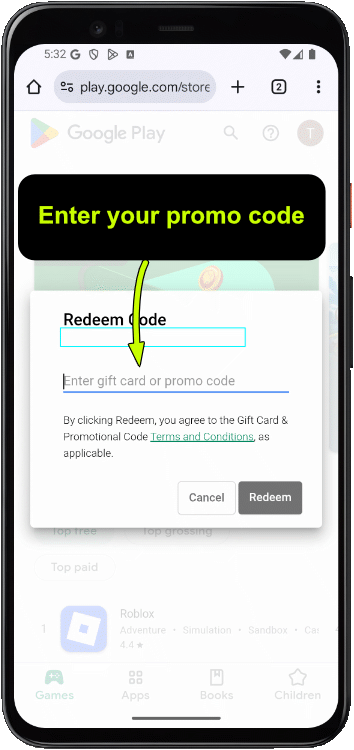
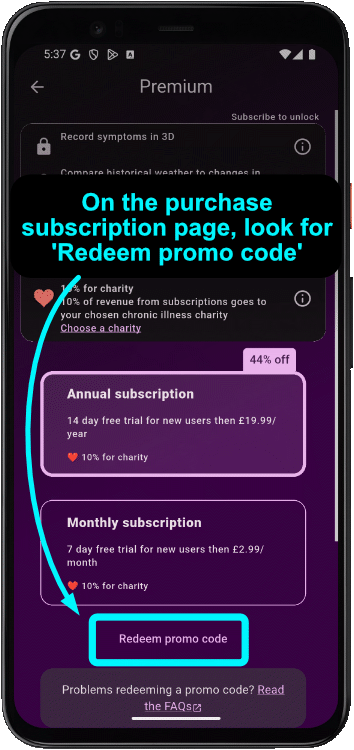
The easiest way to redeem a promo code is from the Premium Subscription settings page inside the Chronic Insights app. Tap on the ‘Redeem promo code‘ button near the bottom (if you don’t see this button, try Method 2 below). This will open the Play app where you can enter your promo code.
Method 2
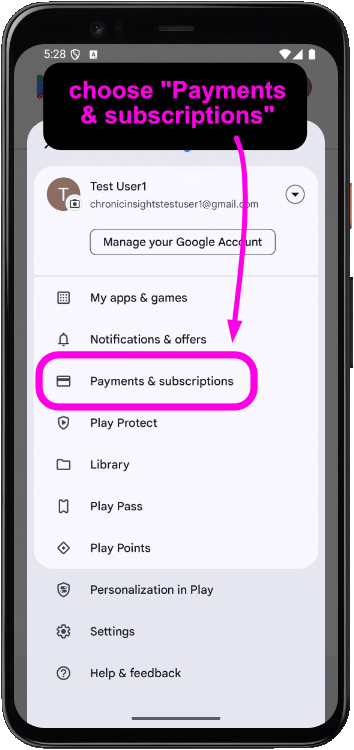
If method 1 doesn’t work, open the Play store app and tap on your account icon in the top right corner, choose “Payments & subscriptions“, then choose “Redeem code“


Method 3
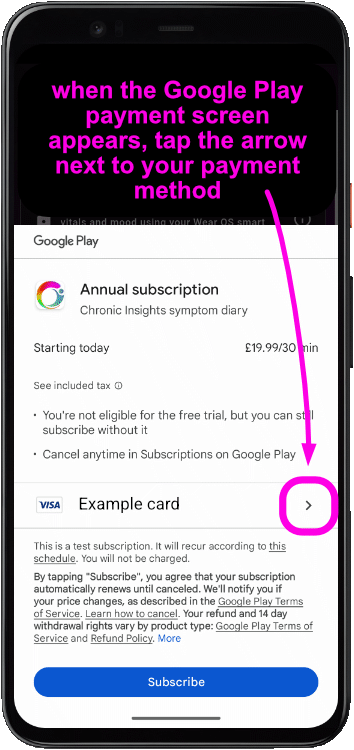
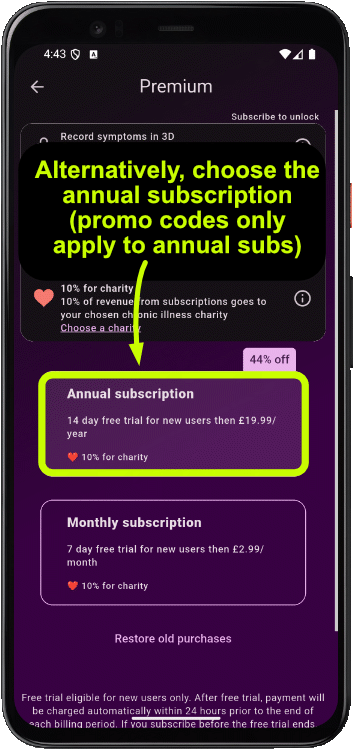
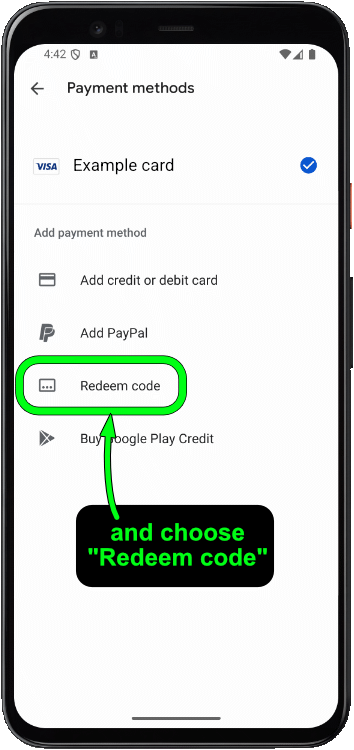
If methods 1 and 2 don’t work, tap on the Annual subscription option in the Chronic Insights Premium settings page. When the Google Play payment screen appears, tap the arrow next to your payment method, then choose “Redeem code“
iOS (App Store)
Please note that promo codes for iOS (iPhone and iPad) can only be redeemed on devices running iOS 14 and later or iPadOS 14 and later
Method 1
This method is only available in Chronic Insights version 5.17 and later
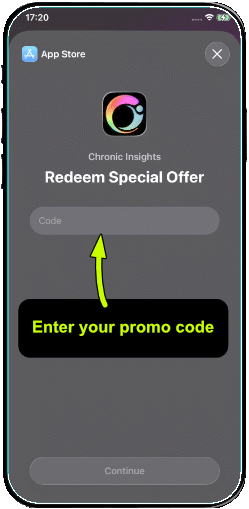
The easiest way to redeem a promo code is from the Premium Subscription settings page inside the Chronic Insights app. Tap on the ‘Redeem promo code‘ button near the bottom (if you don’t see this, try Method 2 below). This will open the App Store where you can enter your promo code.
Method 2
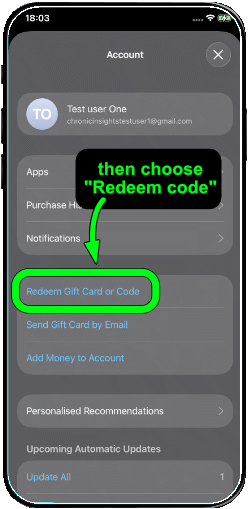
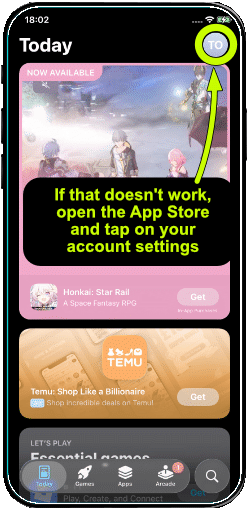
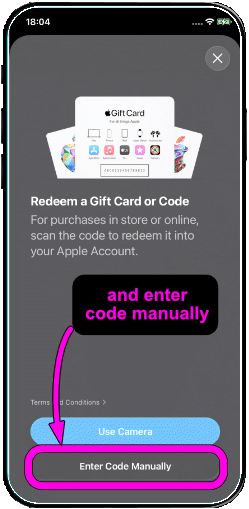
If method 1 doesn’t work, open the App Store app and tap on your account icon in the top right corner, then choose “Redeem code“, and enter your code manually